

What exactly is Quick Actions in Xcode?
The Quick Actions panel, introduced in Xcode 15, is Apple’s new feature inspired by tools like Spotlight and Visual Studio Code’s Command Palette.
It centralizes access to Xcode menu items, Automator workflows, and Shortcuts app actions — all from one place, without ever leaving the editor.
Think of it as Xcode’s built-in command line, where you can search, discover, and execute actions instantly. It’s not just about running menu items — it’s a productivity hub that reveals what Xcode can do, and lets you trigger it all with a few keystrokes.
Quick Actions can also serve as a finder for keyboard shortcuts of menu items.
You can access it from the menu Editor → Quick Actions or with ⌃⇧⌘A (Control–Shift–Command–A). Once you open it, search for an action by typing it’s name or just single letter to find the action or just to get ideas what is accessible. Xcode 26 contains more actions than Xcode 15 and 16, so it’s worth checking what’s new in each version.
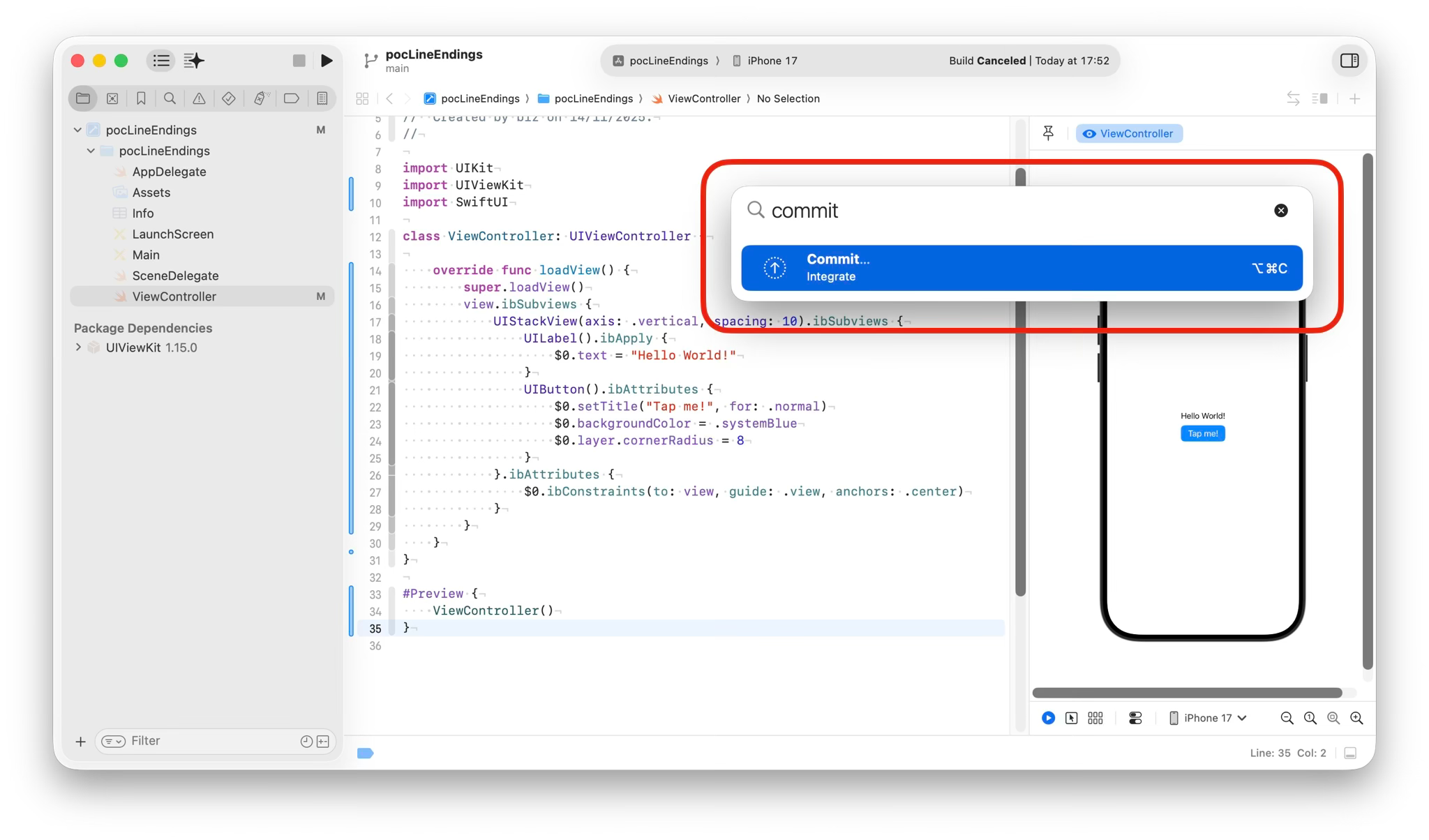
Wait — I saw my macOS Shortcuts App actions there. Why?
Because Quick Actions are tightly integrated with the Shortcuts app.
You can create a shortcut in the Shortcuts App and have it appear directly in Xcode’s Quick Actions panel.
Does it work with Automator too?
Yes.
Can it run my own shell scripts or commands like xcodegen generate?
Yes — just wrap your script with an Automator workflow or Shortcuts App custom action.
What are your favourite Quick Actions commands?
Here are some of my favorite built-in Xcode’s Quick Actions:
Discard changes in the current file
Discard all changes in the project
Clean build folder
Clear consol
Find and replace in the current file
Commit
And my custom ones:
Execute xcodegen generate command
Switch between my project’s white-labels environments
📬 Coming Next (for subscribers):
“How to Build a Shortcut App, Custom Shortcut for Xcode”
Learn how to turn your everyday build scripts into one-click actions inside Xcode.
Subscribe now to get the tutorial as soon as it’s published.